figma의 등장으로 인해 이제는 디자이너 없이도 개발자들도 어렵지 않게 나쁘지 않은 UI 정도는 직접 디자인할 수 있게 되었다. 디자이너가 직접 만진 것 보다는 아무래도 퀄리티가 떨어지긴 하겠지만 과거 figma 같은 툴이 없이 개발자가 직접 UI 디자인을 할 때와 비교하면 그 갭은 큰 것 같다.
이번에는 간단히 figma make로 생성한 UI를 cursor로 가져오는 것을 메모 차원에서 기록해본다.
1. figma make에서 UI 제작:
- 예시로 로그 서버로부터 로그를 조회하는 UI를 만들었다.

2. 아래 링크로 이동해 Figma MCP server deep link 링크를 클릭해 cursor에 mcp server를 설치한다.
https://developers.figma.com/docs/figma-mcp-server/remote-server-installation/#cursor
Remote server | Developer Docs
Note: You must use a code editor or application that supports MCP servers (i.e. VS Code, Cursor, Claude Code)
developers.figma.com
3. 링크를 클릭하면 cursor ai가 실행되면서 아래 그림과 같이 Installed MCP Servers 목록에 자동으로 추가된다.

4. 위 그림처럼 Figma MCP Server가 추가되는데, 위 그림에는 오른쪽 끝에 토글 스위치가 표시되지만, 원래는 connect 버튼이 표시된다. 그 connect 버튼을 클릭하면 웹브라우저를 띄우며 figma에 로그인하는 절차를 진행하게 되며, 로그인이 완료되면 위 그림처럼 토글 버튼을 변경된다.
5. 아래 링크로 가서 cursor ai에 rule들을 추가해준다.
https://developers.figma.com/docs/figma-mcp-server/add-custom-rules/#general-purpose-rules
Add custom rules and instructions | Developer Docs
Define project-level instructions to help guide the AI toward consistent, high-quality output. Think of it as a place to store the kind of knowledge around the "unwritten rules" of a codebase that experienced devs know, and would want to pass on to a new j
developers.figma.com
6. figma make에서 작업한 파일의 링크를 복사한다.
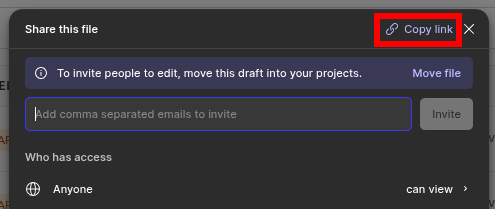
7. code agent에 프롬프트 작성. 아래는 예시.
figma mcp server를 이용해 아래 링크를 참조해서 현재 프로젝트에 맞게 로그 조회 화면을 구현해줘.
링크: https://www.figma.com/make/~~~~~~~~


